Ledger®® Live: Desktop® — Getting Started | official Ledger™
Use Ledger Live Desktop to access compatible wallet features, organize crypto accounts, and review important digital asset information.
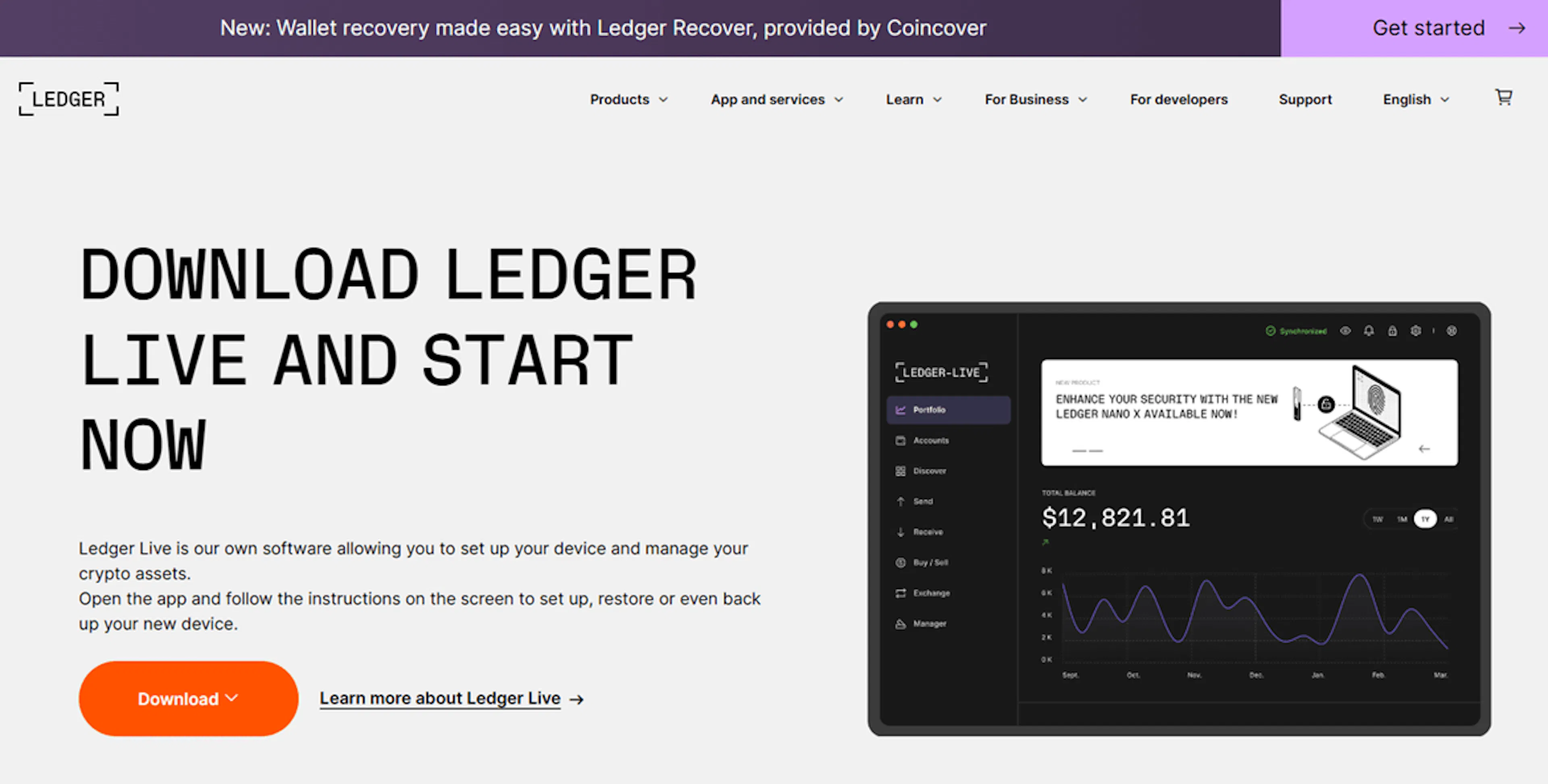
Ledger Live Desktop: A Complete Guide to Crypto Wallet Management
Introduction to Ledger Live Desktop
Managing digital assets from a computer can be easier when you have reliable wallet software and a compatible hardware device. Ledger Live Desktop is the commonly used name for Ledger's desktop cryptocurrency management application, now called Ledger Wallet.
The desktop application provides a central place to review supported cryptocurrency accounts, monitor portfolio activity, check transactions, and manage available wallet services. When paired with a compatible Ledger hardware wallet, it allows users to manage digital assets while keeping private-key operations protected by the physical device.
This guide explains how to download the application, connect a hardware wallet, explore its features, and follow essential security practices.
What Is Ledger Live Desktop Used For?
Ledger Live Desktop provides a software interface for interacting with supported cryptocurrency accounts. It works with compatible Ledger hardware wallets and helps users manage everyday account activities.
Its main purposes include:
- Reviewing cryptocurrency balances and account information.
- Monitoring portfolio performance and activity.
- Checking transaction history.
- Receiving supported digital assets.
- Preparing cryptocurrency transfers.
- Managing compatible blockchain applications and accounts.
- Accessing available device and software settings.
Available features depend on the Ledger model, operating system, cryptocurrency, and software version.
How to Download and Install Ledger Live Desktop
Step 1: Open the Official Download Page
Visit the official Ledger download page:
https://www.ledger.com/ledger-live
Check the website address carefully before downloading the application. Avoid unofficial websites, advertisements, and third-party download platforms.
Step 2: Choose Your Desktop Version
Select the application version compatible with your operating system. Review the published system requirements to make sure your computer supports the software.
Step 3: Download the Application
Use the official download option and wait for the installation file to finish downloading. Do not use modified installers or files received through unexpected messages.
Step 4: Install Ledger Wallet
Open the downloaded installer and follow the on-screen instructions. After installation, launch the application from your computer.
Step 5: Connect Your Ledger Hardware Wallet
Connect your compatible Ledger device using the recommended cable or connection method. Unlock the device with your PIN and follow the instructions displayed on the computer and hardware wallet.
Setting Up Your Cryptocurrency Accounts
After connecting your device, follow the application instructions to complete the required configuration.
If you are using a new Ledger device, complete its initialization process. If you already have a configured device, follow the instructions for connecting it to the application.
Install the relevant blockchain applications and add compatible accounts for the digital assets you want to manage. Account availability depends on the cryptocurrency and device support.
If you are setting up a new wallet, record your recovery phrase according to the instructions displayed on your device. Keep this information private and offline. Never share it or enter it into a website or support form.
Important Features of Ledger Live Desktop
1. Portfolio Management
Review supported cryptocurrency balances and available portfolio information from the desktop interface.
2. Account Organization
Add and manage compatible accounts to keep different digital assets organized.
3. Transaction Monitoring
Review transaction activity and available transfer details to better understand account history.
4. Receiving Cryptocurrency
Access receiving information for supported assets and verify the address displayed by your hardware wallet before sharing it.
5. Sending Digital Assets
Prepare outgoing transactions through the application. Carefully check the recipient address and amount on your Ledger hardware wallet before approving the transfer.
6. Application and Device Management
Access available settings and install supported blockchain applications through the official software.
Best Security Practices for Ledger Users
Protecting your cryptocurrency requires attention to both your computer and hardware wallet.
- Keep recovery information private: Never disclose your recovery phrase to anyone.
- Download genuine software: Use Ledger's official website for applications and updates.
- Protect your PIN: Choose a private PIN and do not share it.
- Check transaction details: Verify the recipient address and amount directly on your device.
- Avoid phishing websites: Do not follow suspicious links claiming to provide wallet support.
- Secure your computer: Use trusted security updates and avoid installing unknown programs.
Remember that anyone who obtains your recovery phrase may be able to access your wallet. Ledger support will never need your recovery phrase to provide ordinary assistance.
Common Ledger Live Desktop Problems
If your hardware wallet is not detected, check the cable, USB port, and device compatibility. Restart the application and reconnect your hardware wallet.
If an account or asset is missing, confirm that it is supported and that the appropriate blockchain application is installed. For software errors or update problems, consult Ledger's official support resources.
Never follow troubleshooting instructions that ask you to reveal your recovery phrase.
Conclusion
Ledger Live Desktop, now known as Ledger Wallet, offers a desktop interface for managing supported cryptocurrency accounts with a compatible Ledger hardware wallet. Its account-management tools, transaction information, and device integration can help users organize their digital assets.
For the official application and current setup guidance, visit https://www.ledger.com/ledger-live.
Disclaimer: This is independent educational content and is not affiliated with or endorsed by Ledger. Application features and compatibility may change with device models and software updates.