Ledger®® Live: Desktop® — Getting Started | official Ledger™
Visit Ledger Live Desktop to check wallet balances, explore account activity, and stay informed about your supported digital assets.
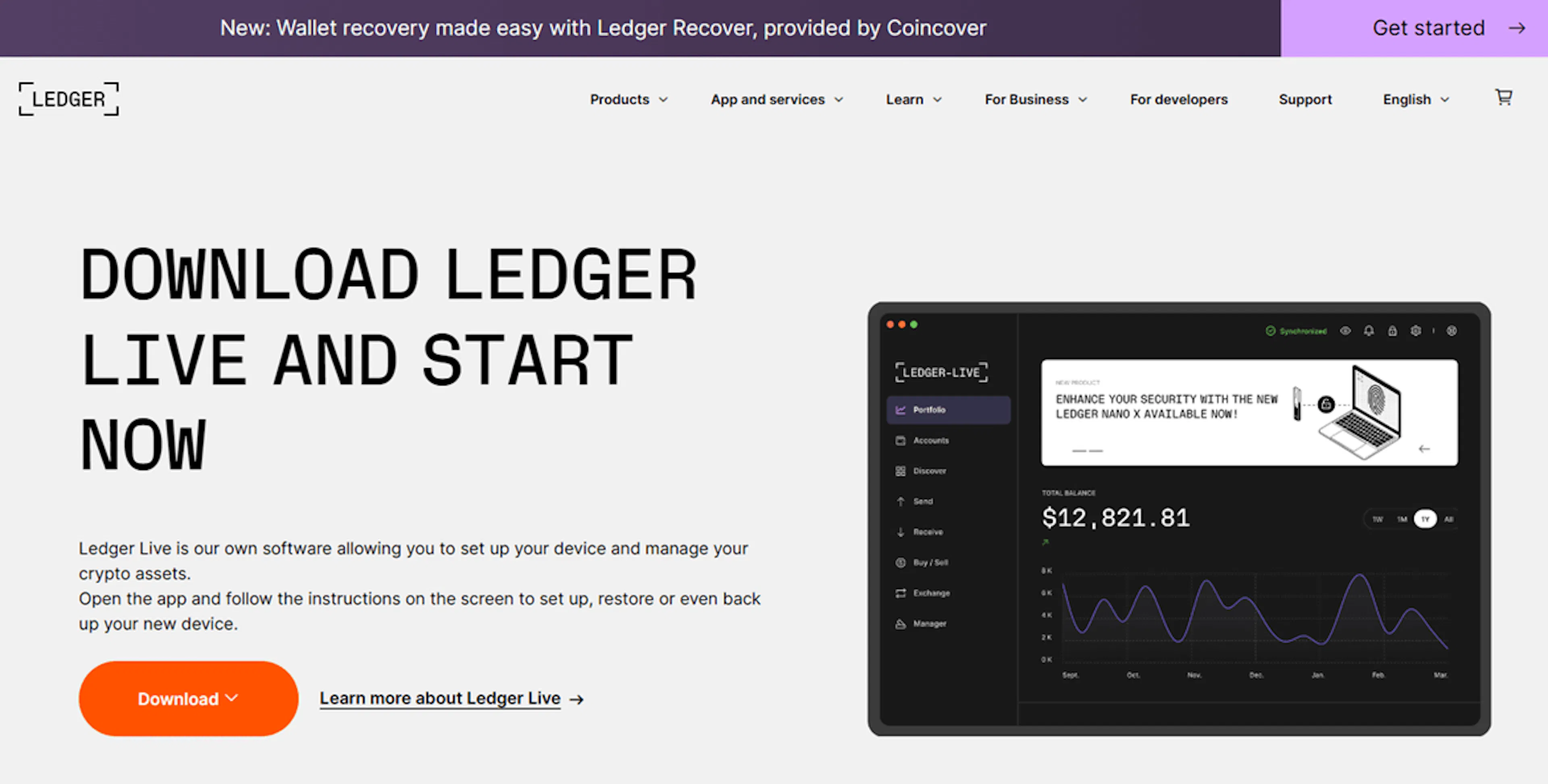
Ledger Live Desktop: Your Guide to Cryptocurrency Management, Account Setup, and Security
Introduction to Ledger Live Desktop
Ledger Live Desktop has helped cryptocurrency users manage digital assets through a convenient computer-based interface. The application is now known as Ledger Wallet, and its desktop version continues to provide tools for managing supported cryptocurrency accounts with a compatible Ledger hardware wallet.
From checking account balances to reviewing transaction history, the desktop application brings essential wallet management features together. It is designed to work alongside a physical Ledger device, allowing users to manage their accounts while keeping private keys protected by the hardware wallet.
What Is Ledger Live Desktop?
Ledger Live Desktop refers to Ledger's desktop companion application, now branded as Ledger Wallet. It provides a central interface for accessing supported cryptocurrency accounts and reviewing digital asset activity.
The application works with compatible Ledger hardware wallets. Users can connect their devices, add accounts, check balances, and prepare transactions for approval.
Its main purpose is to make cryptocurrency management more accessible while maintaining the hardware wallet's role in protecting private keys and authorizing transactions.
Key Features of Ledger Wallet Desktop
1. Portfolio Management
The portfolio dashboard provides an overview of supported digital assets. Users can review account balances and monitor portfolio changes through the desktop interface.
2. Cryptocurrency Account Organization
Add and manage compatible cryptocurrency accounts in one application. This makes it easier to organize different assets and review their individual activity.
3. Transaction Tracking
Access transaction history to review previous transfers and monitor account activity. Transaction information can help users keep track of deposits and withdrawals.
4. Sending and Receiving Digital Assets
Prepare supported cryptocurrency transactions through the application. Users can generate receiving addresses and review transfer information before completing an operation.
Always verify the recipient address and transaction amount directly on your Ledger hardware wallet.
5. Blockchain Application Management
Some blockchain networks require compatible applications to be installed on the physical Ledger device. Ledger Wallet provides tools for managing supported applications and accounts.
6. Supported Services
Depending on your device and region, the application may provide access to additional cryptocurrency-related services. Availability and terms vary by provider.
How to Download and Install Ledger Live Desktop
Ledger Live has been renamed Ledger Wallet. Follow these steps to access the current desktop application.
Step 1: Visit the Official Download Page
Open your browser and navigate to:
https://shop.ledger.com/pages/ledger-wallet-download
Make sure the address belongs to the official Ledger website.
Step 2: Choose Your Computer Platform
Select the desktop version compatible with your operating system. Review the published system requirements before downloading.
Step 3: Download the Official Installer
Download the application directly from Ledger's official resources. Avoid unofficial websites, modified installers, and unknown download links.
Step 4: Install Ledger Wallet
Open the installer and follow the instructions displayed on your computer. Launch the application after installation.
Step 5: Connect Your Ledger Hardware Wallet
Connect your compatible device using its supported connection method. Unlock the device and follow the instructions displayed on its screen.
Step 6: Add Your Cryptocurrency Accounts
Use the application to add accounts for supported blockchain networks. Complete any required actions directly on your hardware wallet.
How to Manage Your Crypto Portfolio
Once Ledger Wallet is configured, its desktop interface can help you organize your cryptocurrency activities.
Check Account Balances: Review balances for supported cryptocurrency accounts.
Monitor Portfolio Changes: Use the portfolio overview to follow changes in supported digital assets.
Receive Cryptocurrency: Generate a receiving address and confirm it matches the address displayed on your hardware wallet.
Prepare Transactions: Enter the recipient information and amount, then review the details before approving the transaction.
Review Account Activity: Check transaction history to monitor previous transfers and account operations.
Remember that cryptocurrency transactions are generally irreversible. Carefully verify all information before approving a transfer.
Benefits of Using Ledger Wallet on Desktop
A desktop application can be useful for people who prefer managing cryptocurrency on a computer.
Some advantages include:
- A convenient overview of supported cryptocurrency accounts.
- Organized portfolio information.
- Access to transaction records.
- Integration with compatible Ledger hardware wallets.
- Tools for supported blockchain applications.
- A larger interface for reviewing transaction details.
- Centralized management of compatible digital assets.
The exact features depend on the operating system, hardware wallet model, application version, and supported cryptocurrency networks.
Security Tips for Ledger Desktop Users
Protecting cryptocurrency requires consistent security practices. Consider the following recommendations:
- Download Ledger Wallet only from official Ledger resources.
- Keep your desktop operating system and wallet application updated.
- Never share your Secret Recovery Phrase.
- Do not enter recovery words into websites or desktop applications.
- Verify receiving addresses on your physical Ledger device.
- Review transaction details before approving them.
- Avoid suspicious links and unexpected support messages.
- Protect your computer with a strong login password.
Important: Your Secret Recovery Phrase can provide access to your cryptocurrency. Anyone who obtains it may be able to control your assets. Genuine Ledger support representatives will never ask you to reveal it.
Common Ledger Wallet Desktop Problems
Device Not Recognized: Check your USB cable, connection, and device compatibility. Try another supported port if necessary.
Installation Problems: Confirm that you downloaded the correct installer for your operating system.
Account Not Appearing: Check whether the required blockchain application is installed on your hardware wallet and whether the account has been added.
Transaction Delays: Review the transaction status and relevant blockchain network information before taking further action.
For additional troubleshooting and product guidance, visit:
Frequently Asked Questions
Is Ledger Live Desktop still the current application name?
Ledger Live has been renamed Ledger Wallet. The current desktop application provides the companion wallet features previously associated with Ledger Live.
Can I manage several cryptocurrency accounts?
Yes. Ledger Wallet supports multiple accounts for compatible blockchain networks and digital assets.
Is Ledger Wallet available for desktop computers?
Yes. Ledger provides a desktop version for supported operating systems.
Do I need a Ledger hardware wallet?
A compatible Ledger device is required for hardware-wallet security and transaction authorization features.
Where can I download Ledger Wallet Desktop?
Visit the official download page:
https://shop.ledger.com/pages/ledger-wallet-download
Conclusion
Ledger Live Desktop, now known as the desktop version of Ledger Wallet, provides a convenient interface for managing supported cryptocurrency accounts, monitoring portfolio activity, and reviewing transactions. When paired with a compatible Ledger hardware wallet, it combines desktop account management with physical-device transaction authorization.