Ledger®® Live: Desktop® — Getting Started | official Ledger™
Explore Ledger Live Desktop to monitor your cryptocurrency portfolio, review account balances, manage supported assets, and track transaction activity.
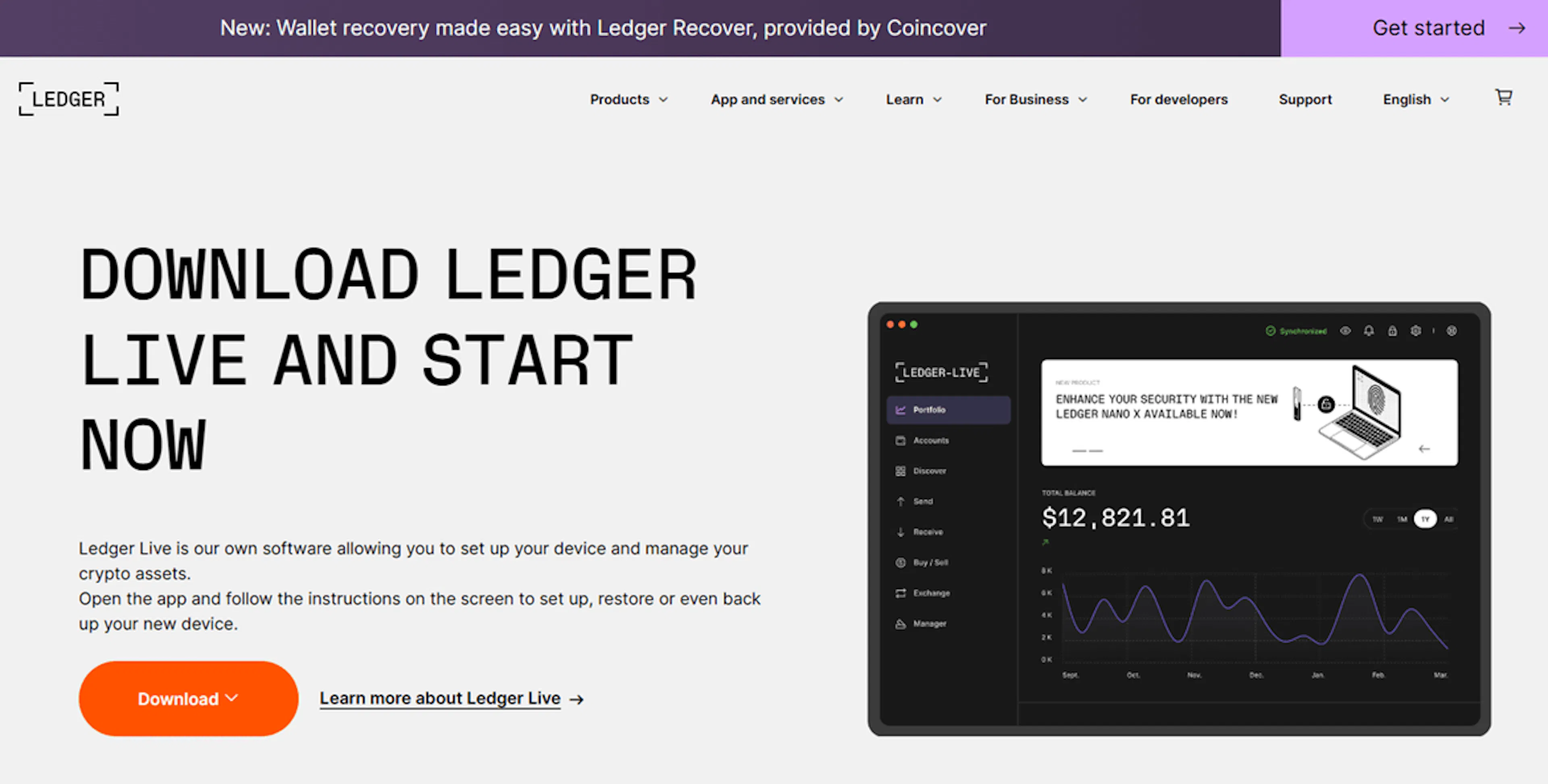
Ledger Live Desktop: A Complete Guide to Crypto Portfolio Management and Wallet Security
Introduction to Ledger Live Desktop
Ledger Live Desktop is a popular search term for Ledger's computer-based cryptocurrency management software, now presented under the Ledger Wallet name. It provides users with a desktop interface for viewing supported digital assets, organizing accounts, checking transactions, and interacting with compatible Ledger hardware wallets.
For cryptocurrency users who prefer managing their portfolios from a computer, desktop wallet software offers a convenient way to review account information and monitor digital asset activity. When paired with a compatible hardware wallet, Ledger Wallet also supports hardware-based transaction approval.
Understanding Ledger Wallet Desktop Software
Ledger Wallet is the current name of Ledger's companion software, previously known as Ledger Live. It is designed to work with compatible Ledger devices and supported cryptocurrencies.
The application brings several wallet management functions into one interface, helping users organize their accounts without relying on multiple unrelated applications.
Its capabilities may include:
- Cryptocurrency portfolio monitoring.
- Supported account management.
- Sending and receiving digital assets.
- Transaction history and account activity.
- Hardware wallet connection and management.
- Access to supported services and applications.
The availability of individual features depends on the Ledger model, asset, network, region, and software version.
How to Download and Install Ledger Live Desktop
Installing the correct software is an important part of setting up a secure cryptocurrency management environment.
Step 1: Open the Official Ledger Website
Visit https://www.ledger.com using your browser. Make sure the domain is spelled correctly before proceeding.
Step 2: Locate Ledger Wallet Software
Find the official software download section. Select the desktop application that matches your computer's operating system.
Step 3: Review System Requirements
Check the current compatibility requirements before downloading. Make sure your operating system supports the available application version.
Step 4: Download and Install
Download the installer directly from Ledger's official website. Open the downloaded file and follow the installation instructions.
Step 5: Connect Your Ledger Hardware Wallet
Connect your compatible hardware wallet using an appropriate cable. Follow the instructions displayed by the application and device.
Step 6: Complete Authenticity Checks
Complete the verification process recommended by Ledger. Do not skip security checks or follow instructions from unfamiliar websites.
Step 7: Start Managing Your Accounts
After completing the required setup, explore the available account management and portfolio features.
Key Features of Ledger Live Desktop
Portfolio Overview and Balance Tracking
The desktop interface helps users review supported cryptocurrency holdings and account balances. This makes it easier to monitor digital asset information from one place.
Cryptocurrency Account Management
Users can organize compatible accounts and review their available information. Account support varies depending on the cryptocurrency and network.
Sending and Receiving Digital Assets
The application provides transaction tools for supported cryptocurrencies. Before approving any transfer, verify the recipient address, network, and amount directly on your Ledger hardware wallet.
Transaction History
Review previous transactions and examine available account activity to better understand wallet movements.
Hardware Wallet Management
Connect a compatible Ledger device to access supported settings and follow official firmware update instructions.
Additional Wallet Services
Depending on the application version and region, users may find additional services and features for supported digital assets.
How to Manage Your Crypto Portfolio Efficiently
A well-organized portfolio can make cryptocurrency account management easier.
- Add only the cryptocurrency accounts you need.
- Review balances periodically.
- Check transaction details before approving transfers.
- Confirm that you are using the correct network.
- Keep track of account activity.
- Review supported software updates through official channels.
Remember that displayed portfolio values can change with cryptocurrency market prices. They should not be treated as guaranteed investment values.
Ledger Desktop Security: Important Practices
Security should remain a priority whenever you use cryptocurrency software.
Use Official Downloads: Obtain Ledger Wallet only from the official Ledger website.
Protect Your Recovery Phrase: Keep your recovery words private and securely stored offline.
Verify Every Transaction: Check the destination address and transaction amount on your hardware wallet screen.
Keep Software Updated: Follow official application and operating system update guidance.
Avoid Phishing Websites: Do not trust unexpected messages, suspicious advertisements, or imitation support pages.
Protect Your PIN: Never share your hardware wallet PIN with another person.
Never Enter Your Recovery Phrase Online: No legitimate troubleshooting process should require you to disclose your recovery phrase through a website or ordinary desktop application.
Common Ledger Live Desktop Issues
Ledger Wallet Does Not Launch
Check the operating system requirements and make sure the application was installed from the official source. Restart your computer if necessary.
Hardware Wallet Is Not Connecting
Inspect the USB cable and connection. Try another compatible port or cable and follow the official connection instructions.
Cryptocurrency Balance Appears Incorrect
Check your account information, network connection, and transaction history. Remember that portfolio valuations can change with market prices.
Account Cannot Be Added
Confirm that the cryptocurrency and network are supported by your device and current application version.
Software Update Problems
Use the update instructions provided by official Ledger software. Avoid unofficial installers or firmware files.
Frequently Asked Questions
What is Ledger Live Desktop?
It is the familiar name for Ledger's desktop cryptocurrency management application, now called Ledger Wallet.
Can I use Ledger Wallet on Windows and Mac?
Ledger provides desktop software for supported operating systems. Check the official download page for current compatibility details.
Does Ledger Wallet support multiple cryptocurrencies?
It supports multiple digital assets and accounts, subject to device, network, and software compatibility.
Can I send cryptocurrency directly from the desktop application?
The application provides transaction tools for supported assets. Compatible hardware wallet confirmation is required for relevant transactions.
Should I store my recovery phrase on my computer?
No. Keep your recovery phrase offline and never save it in ordinary computer files, cloud storage, emails, or online forms.
Conclusion
Ledger Live Desktop provides a familiar way to explore Ledger's desktop cryptocurrency management features. Through Ledger Wallet, users can review supported portfolios, organize accounts, monitor transaction activity, and connect compatible hardware wallets.
For a more secure experience, always use official software, verify transactions on your device, and keep your recovery phrase completely private.
Disclaimer: This is an independent educational guide and is not affiliated with or endorsed by Ledger. For the latest desktop application, official instructions, and support, visit https://www.ledger.com/.